Azure AKS - Cluster Autoscaler
Link to all the Kubernetes Manifests
Step-01: Introduction
- The Kubernetes Cluster Autoscaler automatically adjusts the number of nodes in your cluster when pods fail to launch due to lack of resources or when nodes in the cluster are underutilized and their pods can be rescheduled onto other nodes in the cluster.
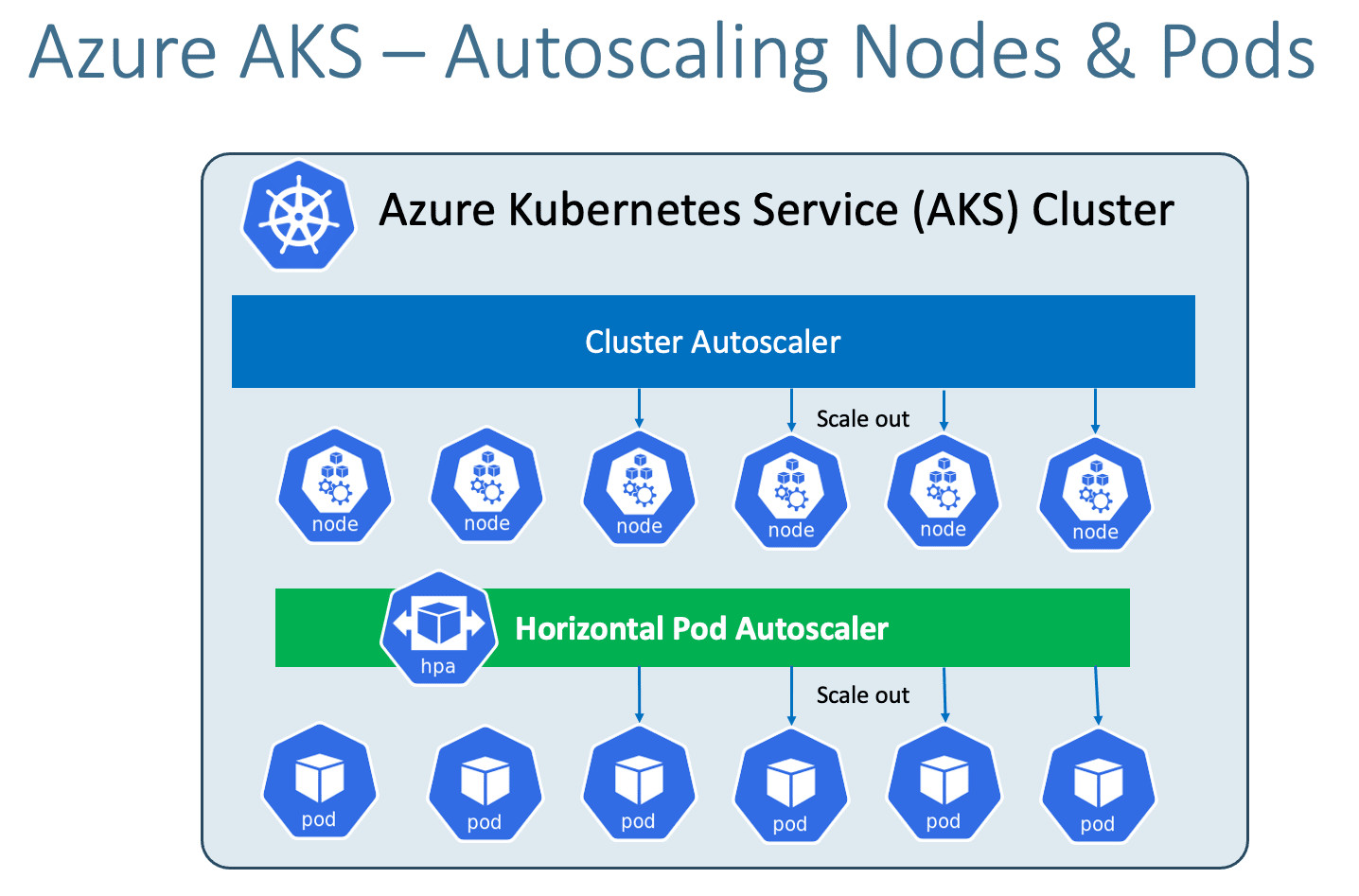
Azure Kubernetes Service with Azure DevOps and Terraform
Step-02: Create Cluster with Cluster Autoscaler Enabled
# Setup Environment Variables
export RESOURCE_GROUP=aks-rg1-autoscaling
export REGION=centralus
export AKS_CLUSTER=aks-autoscaling-demo
echo $RESOURCE_GROUP, $REGION, $AKS_CLUSTER

# Create Resource Group
az group create --location ${REGION} \
                --name ${RESOURCE_GROUP}

# Create AKS cluster and enable the cluster autoscaler
az aks create --resource-group ${RESOURCE_GROUP} \
              --name ${AKS_CLUSTER} \
              --enable-managed-identity \
              --generate-ssh-keys \
              --node-count 1 \
              --enable-cluster-autoscaler \
              --min-count 1 \
              --max-count 5

# Configure Credentials
az aks get-credentials --name ${AKS_CLUSTER}  --resource-group ${RESOURCE_GROUP}

# List Nodes
kubectl get nodes
kubectl get nodes -o wide

# Cluster Info
kubectl cluster-info

# kubectl Config Current Context
kubectl config current-context
Step-03: Compare & Observe aksdemo2 and aks-autoscaling-demo cluster nodepools
Cluster: aksdemo2
- Go to All Services -> Kubernetes Services -> aksdemo2 -> Settings -> Nodepools
- Select Scale
- Compare the setting with aks-autoscaling-demo cluster
- Scale Method: Manual (Observe the setting)
- We can even enable autoscaling from here on Portal Management console
Cluster: aks-autoscaling-demo
- Go to All Services -> Kubernetes Services -> aksdemo2 -> Settings -> Nodepools
- Select Scale
- Scale Method: Automatic (Nothing but --enable-cluster-autoscaler)
- Node Count Rage: 1 to 5 (Nothing but what we defined in Min and Max)
- Current Node Count: 1 (Nothing but what we defined in Node Count)
Step-04: Review & Deploy Sample Application
# Deploy Application
kubectl apply -f kube-manifests/

# List Pods
kubectl get pods

# Access Application
kubectl get svc
http://<PublicIP-from-get-svc-output>/hello
curl -w "\n" http://52.154.217.196/hello
Step-05: Scale our application to 20 pods
- In 2 to 3 minutes, one after the other new nodes will added and pods will be scheduled on them.
- Our max number of nodes will be 5 which we provided during cluster creation.
# Scale UP the demo application to 20 pods
kubectl get pods
kubectl get nodes
kubectl scale --replicas=20 deploy cluster-autoscaler-demoapp-deployment
kubectl get pods

# Verify nodes
kubectl get nodes -o wide

# Access Application
kubectl get svc
http://<PublicIP-from-get-svc-output>/hello
curl -w "\n" http://52.154.217.196/hello
Step-06: Cluster Scale DOWN: Scale our application to 1 pod
- It might take 5 to 20 minutes to cool down and come down to minimum nodes which will be 2 which we configured during nodegroup creation
Step-07: Clean-Up
- We will leave cluster autoscaler and undeploy only application
References
Best Selling Azure Kubernetes Service Course on Udemy
Best Selling AWS EKS Kubernetes Course on Udemy
HashiCorp Certified Terraform Associate - 50 Practical Demos

🎉 New Course
Ultimate DevOps Real-World Project Implementation on AWS
$15.99
$84.99
81% OFF
DEVOPS2026FEB
Enroll Now on Udemy
🎉 Offer