Azure AKS Pull Docker Images from ACR using Service Principal
Link to all the Kubernetes Manifests
Docker Manifests
Step-00: Pre-requisites
- We should have Azure AKS Cluster Up and Running.
- We have created a new aksdemo2 cluster as part of Azure Virtual Nodes demo in previous section.
- We are going to leverage the same cluster for all 3 demos planned for Azure Container Registry and AKS.
# Configure Command Line Credentials
az aks get-credentials --name aksdemo2 --resource-group aks-rg2

# Verify Nodes
kubectl get nodes
kubectl get nodes -o wide

# Verify aci-connector-linux
kubectl get pods -n kube-system

# Verify logs of ACI Connector Linux
kubectl logs -f $(kubectl get po -n kube-system | egrep -o 'aci-connector-linux-[A-Za-z0-9-]+') -n kube-system
Step-01: Introduction
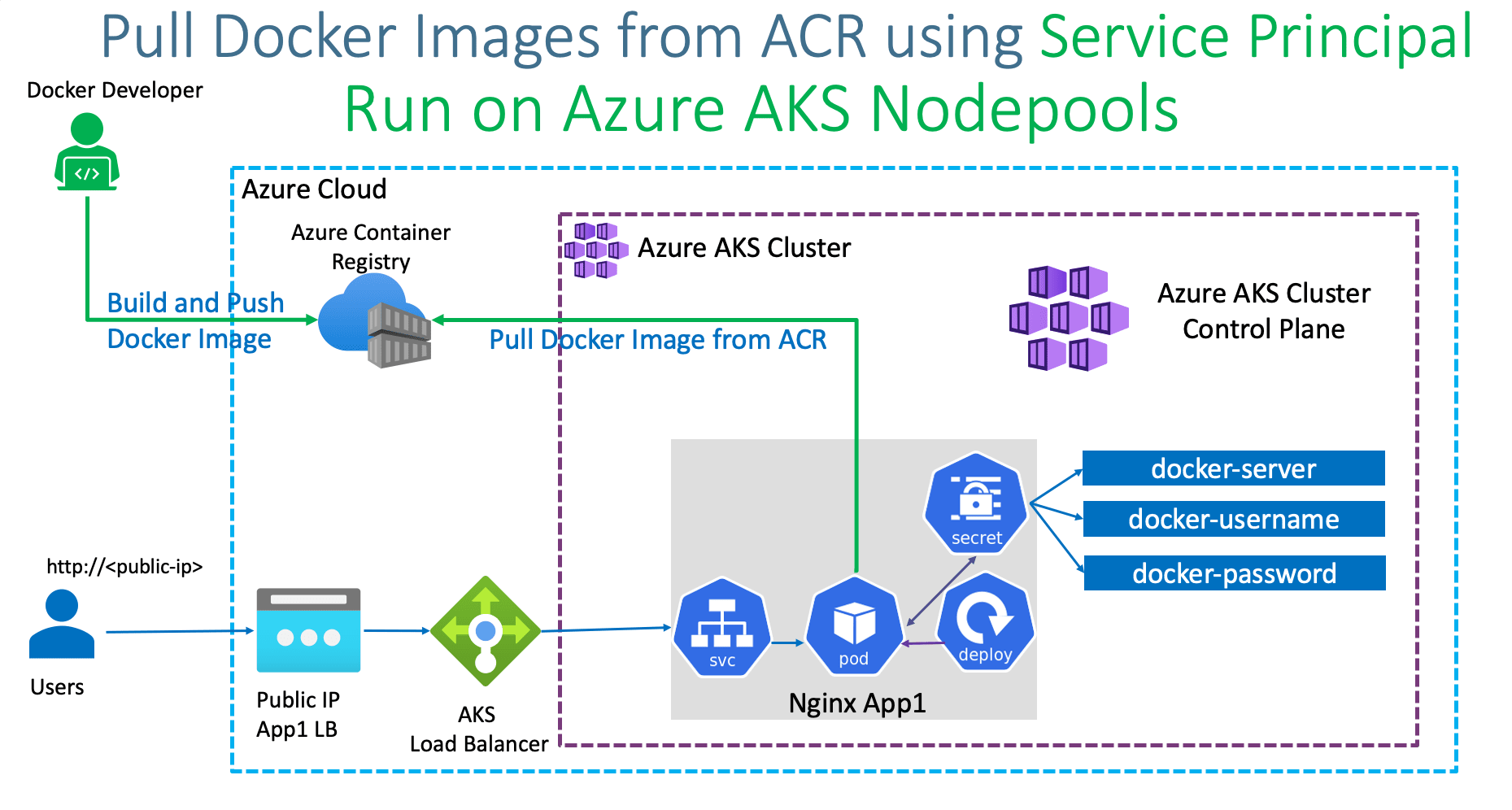
- We are going to pull Images from Azure Container Registry which is not attached to AKS Cluster.
- We are going to do that using Azure Service Principals.
- Build a Docker Image from our Local Docker on our Desktop
- Push to Azure Container Registry
- Create Service Principal and using that create Kubernetes Secret.
- Using Kubernetes Secret associated to Pod Specificaiton, pull the docker image from Azure Container Registry and Schedule on Azure AKS NodePools
Azure Kubernetes Service with Azure DevOps and Terraform
Step-02: Create Azure Container Registry
- Go to Services -> Container Registries
- Click on Add
- Subscription: StackSimplify-Paid-Subsciption
- Resource Group: acr-rg2
- Registry Name: acrdemo2ss (NAME should be unique across Azure Cloud)
- Location: Central US
- SKU: Basic (Pricing Note: $0.167 per day)
- Click on Review + Create
- Click on Create
Step-02: Build Docker Image Locally
# Change Directory
cd docker-manifests

# Docker Build
docker build -t acr-app2:v1 .

# List Docker Images
docker images
docker images acr-app2:v1
Step-03: Run locally and test
# Run locally and Test
docker run --name acr-app2 --rm -p 80:80 -d acr-app2:v1

# Access Application locally
http://localhost

# Stop Docker Image
docker stop acr-app2
Step-04: Enable Docker Login for ACR Repository
- Go to Services -> Container Registries -> acrdemo2ss
- Go to Access Keys
- Click on Enable Admin User
- Make a note of Username and password
Step-05: Push Docker Image to Azure Container Registry
Build, Test Locally, Tag and Push to ACR
# Export Command
export ACR_REGISTRY=acrdemo2ss.azurecr.io
export ACR_NAMESPACE=app2
export ACR_IMAGE_NAME=acr-app2
export ACR_IMAGE_TAG=v1
echo $ACR_REGISTRY, $ACR_NAMESPACE, $ACR_IMAGE_NAME, $ACR_IMAGE_TAG

# Login to ACR
docker login $ACR_REGISTRY

# Tag
docker tag acr-app2:v1  $ACR_REGISTRY/$ACR_NAMESPACE/$ACR_IMAGE_NAME:$ACR_IMAGE_TAG
It replaces as below
docker tag acr-app2:v1 acrdemo2ss.azurecr.io/app2/acr-app2:v1

# List Docker Images to verify
docker images acr-app2:v1
docker images $ACR_REGISTRY/$ACR_NAMESPACE/$ACR_IMAGE_NAME:$ACR_IMAGE_TAG

# Push Docker Images
docker push $ACR_REGISTRY/$ACR_NAMESPACE/$ACR_IMAGE_NAME:$ACR_IMAGE_TAG
Verify Docker Image in ACR Repository
- Go to Services -> Container Registries -> acrdemo2ss
- Go to Repositories -> app2/acr-app2
Step-05: Create Service Principal to access Azure Container Registry
- Review file: shell-script/generate-service-principal.sh
- Update ACR_NAME with your container registry name
- Update SERVICE_PRINCIPAL_NAME as desired
#!/bin/bash

# Modify for your environment.
# ACR_NAME: The name of your Azure Container Registry
# SERVICE_PRINCIPAL_NAME: Must be unique within your AD tenant
#ACR_NAME=<container-registry-name>
ACR_NAME=acrdemo2ss
SERVICE_PRINCIPAL_NAME=acr-sp-demo

# Obtain the full registry ID for subsequent command args
ACR_REGISTRY_ID=$(az acr show --name $ACR_NAME --query id --output tsv)

# Create the service principal with rights scoped to the registry.
# Default permissions are for docker pull access. Modify the '--role'
# argument value as desired:
# acrpull:     pull only
# acrpush:     push and pull
# owner:       push, pull, and assign roles
SP_PASSWD=$(az ad sp create-for-rbac --name http://$SERVICE_PRINCIPAL_NAME --scopes $ACR_REGISTRY_ID --role acrpull --query password --output tsv)
SP_APP_ID=$(az ad sp show --id http://$SERVICE_PRINCIPAL_NAME --query appId --output tsv)

# Output the service principal's credentials; use these in your services and
# applications to authenticate to the container registry.
echo "Service principal ID: $SP_APP_ID"
echo "Service principal password: $SP_PASSWD"
Step-06: Create Image Pull Secret
# Template
kubectl create secret docker-registry <secret-name> \
    --namespace <namespace> \
    --docker-server=<container-registry-name>.azurecr.io \
    --docker-username=<service-principal-ID> \
    --docker-password=<service-principal-password>

# Replace
kubectl create secret docker-registry acrdemo2ss-secret \
    --namespace default \
    --docker-server=acrdemo2ss.azurecr.io \
    --docker-username=80beacfe-7176-4ff5-ad22-dbb15528a9a8 \
    --docker-password=0zjUzGzSx3_.xi1SC40VcWkdVyl8Ml8QNj

# List Secrets
kubectl get secrets
Step-07: Review, Update & Deploy to AKS & Test
Update Deployment Manifest with Image Name, ImagePullSecrets
    spec:
      containers:
        - name: acrdemo-localdocker
          image: acrdemo2ss.azurecr.io/app2/acr-app2:v1
          imagePullPolicy: Always
          ports:
            - containerPort: 80
      imagePullSecrets:
        - name: acrdemo2ss-secret
Deploy to AKS and Test
# Deploy
kubectl apply -f kube-manifests/

# List Pods
kubectl get pods

# Describe Pod
kubectl describe pod <pod-name>

# Get Load Balancer IP
kubectl get svc

# Access Application
http://<External-IP-from-get-service-output>
Step-07: Clean-Up
References
- Azure Container Registry Authentication - Options
- Pull images from an Azure container registry to a Kubernetes cluster
Best Selling Azure Kubernetes Service Course on Udemy
Best Selling AWS EKS Kubernetes Course on Udemy
HashiCorp Certified Terraform Associate - 50 Practical Demos

🎉 New Course
Ultimate DevOps Real-World Project Implementation on AWS
$15.99
$84.99
81% OFF
DEVOPS2026FEB
Enroll Now on Udemy
🎉 Offer